
What pmConfigure is
For Project Magenta customers: it configures the Project Magenta programs you own. It checks a simulator PC and its rig: hardware, program folders, settings, registration keys, logs, Windows settings. It brings the program updates. It sends this PC’s report with your note to us and shows our answer in the same window. It writes one page for the whole simulator. One exe, Windows only. One window per PC: a second start brings the first one forward.
Where to get it
Customers get pmConfigure from Your Updates on projectmagenta.com, logged in. From then on it updates itself: at start and on Check for updates a newer pmConfigure is offered first. It asks, then restarts.
It reads first
READ ONLY is on by default. pmConfigure reads and suggests. It writes only its own files: settings, log and last check beside it, its report in the shared PM folder. Your programs and their settings stay as they are. Save keys writes the keys you paste, READ ONLY on or off – on your click. pmConfigure.log holds one line per change made on this PC, and its failures; the checks are in the report.
One click, top right, switches READ ONLY off. Then pmConfigure may correct settings: it lists them and asks before it applies them. Installing updates or saving Autostart in READ ONLY asks one question: switch READ ONLY off and go on? No program file or setting changes without your click and your Yes. By itself it only reads the update list and writes its own log and notes.
Before it corrects a setting or installs an update, it copies the file to a backup folder beside itself, named by date and time. In a settings file only the named line changes. Files an update replaces go to the same backup. Right-click the report, Undo last changes: the copies come back.
Where to put it, the first start
pmConfigure.exe belongs in the folder that holds your Project Magenta program folders, for example C:\Magenta, or in a folder of its own inside it. Aircraft sets one level deeper, such as C:\Magenta\B777\CAPTAIN, are found too. Started from the Desktop, the Downloads folder, the top of a drive or a folder with no Project Magenta program under it, it says where it belongs and asks once whether to carry on.
The window opens maximized, readable at Windows scaling 150% and 175%. The PC’s name stands large in the header, so over remote control you see which PC you are on; beside it the build and the folder pmConfigure works on.
Each PC asks for a simulator name and a contact e-mail, until both are set. The first PC’s answers are offered on the others. We confirm the e-mail with a mail that has a button in it; pmConfigure notices it by itself; you can carry on meanwhile. An address confirmed before, on any PC, needs no new mail.
On a new PC the report says: This PC has not been checked yet. Press the green button Check this PC to start. A PC checked before checks again by itself at start.
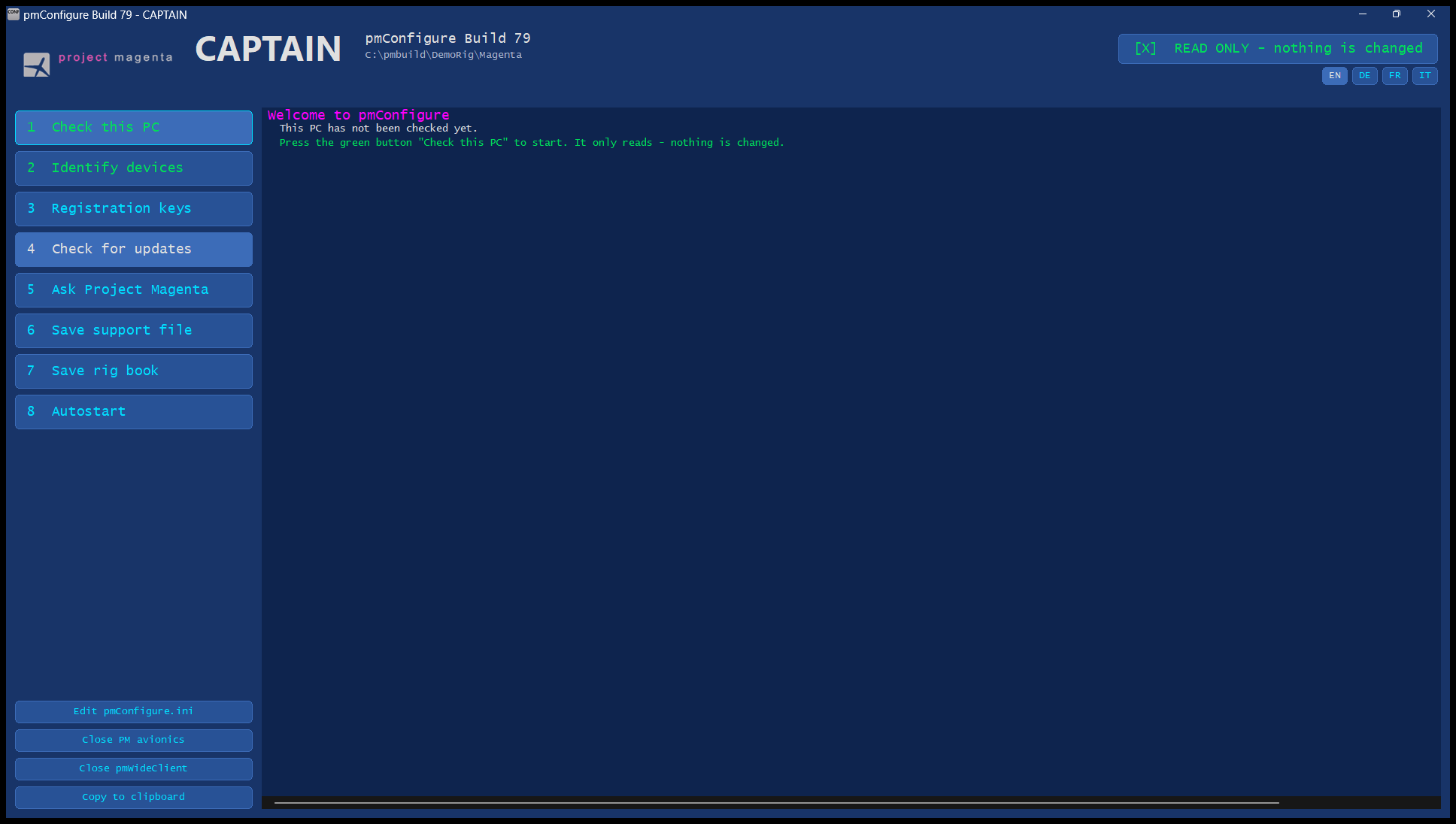
The start window
Eight step buttons on the left, in the order of use. Under them four small buttons. Top right the READ ONLY switch, under it the language boxes. A green button is the next one to press: Check this PC on a new PC, Identify devices until it has run, Check for updates when newer builds wait. Steps 1 to 7, the small buttons and the READ ONLY switch have a one-line hint.
Under the title stands the verdict: Configuration OK in green, or Correct the configuration with the number of problems in amber; click it to jump to the first one. Steps 1 to 6 carry a dot: green when done, amber when it found something to correct. In the report, magenta is a heading, amber a problem to fix, green good, white information, grey a side note.
1 Check this PC
Hardware, PM programs, ini files, registration keys, logs, Windows settings. Changes no setting. Asks nothing of any device. The report lists:
- Programs running now, with the simulator (Prepar3D, FSX, X-Plane 11 and 12, Microsoft Flight Simulator 2020 and 2024, FlightGear): folder, ports, connections.
- USB devices and COM ports, named from pmConfigure’s device list. The network and the simulator hardware on it.
- Program folders: versions, whether pm.dll is the same everywhere, programs more than a year old. Registration keys per program.
- Connection settings in the ini files. A setting that cannot work gets a note: not on this PC’s network, nothing answers on that port, that folder does not exist.
- Other PCs of the rig, compared setting by setting through their reports in the shared PM folder.
- Phidget boards named in the settings against the boards plugged in. pmFBW control axes: whether pitch and roll are assigned.
- Problems in the program folders and the logs, in plain words: crash, missing pm.dll, no simulator connection, terrain not downloaded.
- Windows settings: power plan, decimal sign, Windows Update, firewall, Public network. Screens, scaling, saved window positions off the screens.
- Simulator link: whether the simulator answers; aircraft, position, battery and avionics. Changes since the last check.
Power plan and Windows Update lines are suggestions, not counted. One exception: Windows Update waiting to restart the PC counts – Windows may do it during a session.

Fix with a double-click
A line that ends with “double-click to resolve” can be fixed with a double-click. With READ ONLY on, the double-click says so and changes nothing. pmConfigure asks before it changes anything. For a setting, a small box opens with the value, prefilled when pmConfigure knows it; the program in that folder must be closed first.
Windows lines: the network set to Private, a firewall rule per Project Magenta program, a decimal point, Windows Update paused or stopped from restarting the PC, sleep and hibernate off, USB power saving off, screens never off. Where an administrator is needed, Windows asks once.
Program folders: double-click a folder line and the folder opens. A missing pm.dll is copied in from the newest on this PC. pm.dll differing between folders: the newest goes into every folder, each old one kept as pm.dll.old. pm.dll differing between PCs: the box says which PC has which and offers Check for updates. Programs with their own terrain folder: merged into one shared folder, the old ones kept as terrain.old until you double-click that line to delete them. A program more than a year old: its folder opens.
2 Identify devices
Finds out which device is on which COM port, for example COM5 = CPflight MCP. It names hardware from CPflight, FSCockpit, FSC, Phidgets, Leo Bodnar, eHID, Octopus, Arduino, Lantronix, InterfaceIT, Flight Illusion and Brunner. It asks before it starts. Each COM port is asked once, the way its own program asks it; each CPflight network unit gets one short connection. A port a running program holds is not touched. One that does not answer in 20 seconds is skipped and named: a faulty unit? Unplug it. The report shows each step while it runs and ends with: Done. N COM port(s) and M network address(es) asked.
With Project Magenta programs running, you choose: close them and ask every port, or leave them running and read their logs. Then the report lists the hardware of the running programs, connected or NOT connected per device.
Found addresses are offered as corrections: the MCP’s COM port, the overhead’s port, a CDU address. An FSC CDU or MCDU found on the network goes into an empty FSC1= or FSC2=. FSCockpit panels plugged in while pmSystems or pmFBW lacks its panel list or has them switched off: pmConfigure offers the list and switches them on. One Yes applies them; a copy of each settings file is kept. With READ ONLY on, they are listed, not applied. A PC with no COM port and no network unit is told so: run Identify devices on the PC with the hardware.
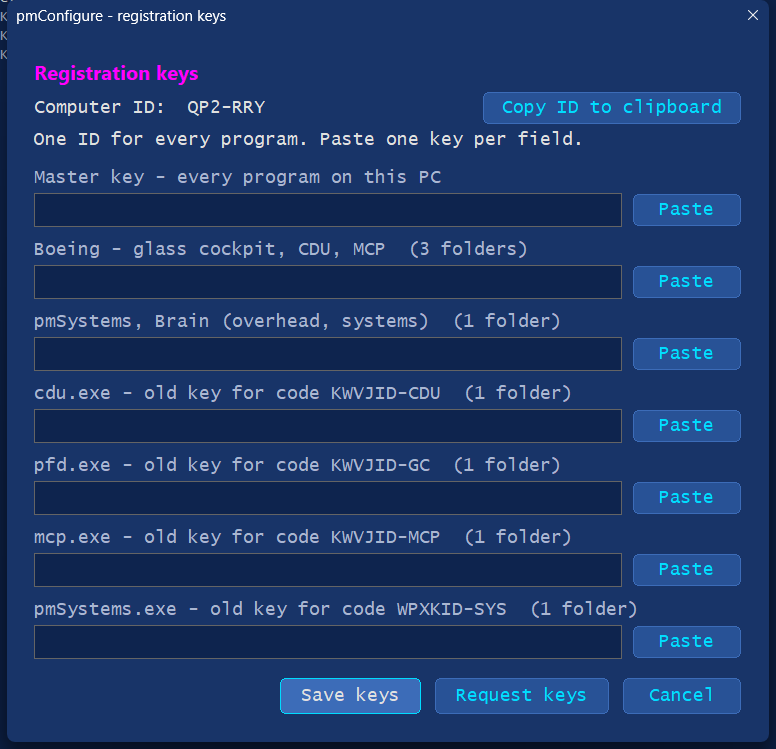
3 Registration keys
Opens the key page: this PC’s Computer ID with Copy ID to clipboard beside it, one field per program group, a Paste button beside every field. Save keys checks each key for this PC, writes it into every folder of its group and says what was written, or that a key is not valid for this PC. A master key, when you have one, covers every program on the PC. In the report, per program: updates until month and year, updates with no end date, or no key – request one.
Programs still on the old keys get one field per code; the report shows each program’s code. pmConfigure cannot check an old key, the program does when it starts. Save keys writes it for every folder that runs the program, while the program is closed.
Request keys opens an e-mail to Project Magenta in your mail program; the text is also on the clipboard. You send it. The keys you get go into the fields; Save keys writes them. Closing with keys typed and not saved asks: Save them now?
Older builds that cannot use the master key yet: Update them now? The key goes into each new build afterwards. A program with no pm.dll beside it is checked with a pm.dll of the rig that knows its key. No pm.dll on this PC knows the new keys: press 4 Check for updates; pm.dll is fetched and placed beside pmConfigure.
4 Check for updates
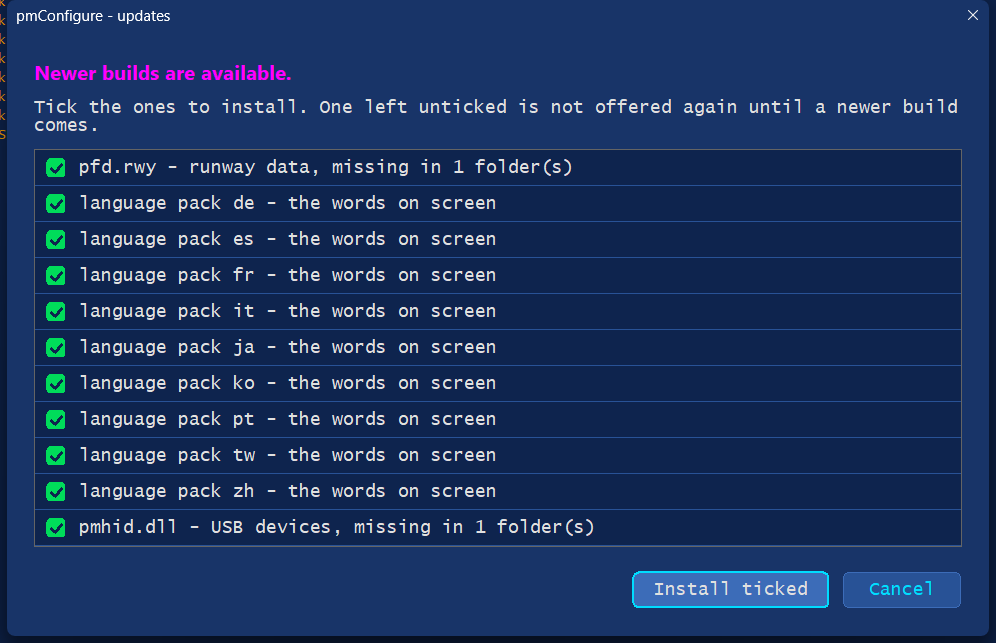
Compares the Project Magenta programs on this PC with the newest builds on projectmagenta.com, by the time each file was built. Installs nothing; you choose. Nothing newer: N file(s) checked – all match the newest published builds. A file not on the update list is named, not compared.
The update window lists each program: build installed, newer build, what changed in between; a renamed program under its new name. Ticked ones install on Install ticked. One left unticked is not offered again until a newer build comes. Updates come for the programs you have keys for. A program with no key is named, not updated; the line says to ask us. Only files signed with Project Magenta’s own certificate are installed.
A running program is closed so it saves its settings, and started again afterwards. One that does not close by itself is stopped only on your Yes (Close it now? Anything not saved in it is lost). On No it is left as it is, not replaced. At the end: N file(s) updated. After a rename pmConfigure says so: a shortcut or start list that starts the old name needs the new one.
An update can also add folders and files, and remove or rename files in a program folder: one item per program folder in the update window. Undo puts them back.
Also offered: runway data where a glass cockpit folder has none, pmHID.dll where a program needs it and has none, pm.dll when the rig’s copies cannot read the new keys, the device list, language packs, pmSystems data files where the rig’s copy is older (your own .user.txt is never touched). At start and every four hours it looks whether newer builds are out; if so, the button pulses green. Nothing is installed.
5 Ask Project Magenta
Sends this PC’s report to us for our advice. Nothing goes until you press Send. The box names what goes: this report, the programs’ logs of the last two days (the last 200 KB of each), the simulator’s name and e-mail, and the other PCs’ reports when there are any. Not sent: registration keys and passwords; a log line with a key in it is left out. A note field takes your words: what works, what doesn’t. Everything works – send sends a good report with one press. The note is kept until sent; Cancel loses nothing.
A ticket number comes back, kept beside pmConfigure. About 15 minutes later Ask Project Magenta shows our answer at the end of the report. No mail program is needed. No internet on this PC: the report goes through the rig’s relay PC. Without one, the report waits in the shared PM folder: a PC with internet sends it with its own Ask Project Magenta, or Save support file carries it.
6 Save support file
One zip file beside pmConfigure: the report, the ini files with registration keys and passwords removed, the logs. The folder opens. It is for the case Ask Project Magenta cannot reach us.
7 Save rig book
One page for the whole simulator from every PC’s last check in the shared PM folder: the PCs, the network, programs and versions, hardware, connection settings, Phidget boards, each PC’s full report. Saved beside pmConfigure as HTML and opened.
8 Autostart
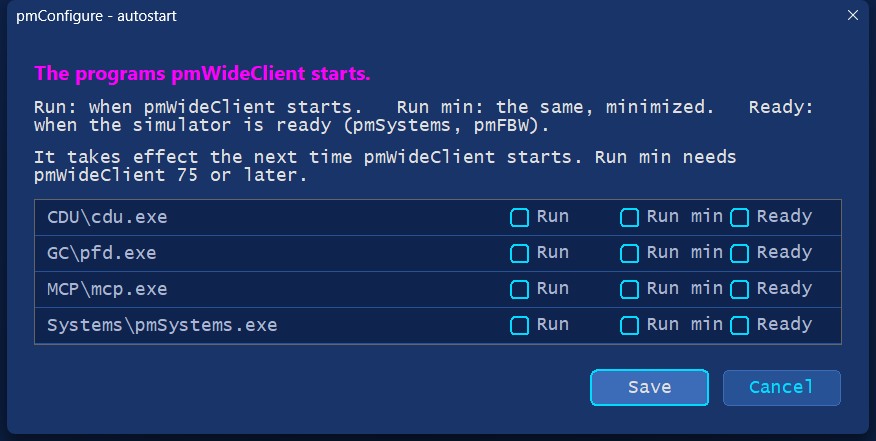
Lists the Project Magenta programs in your rig folder, three boxes each: Run (when pmWideClient starts), Run min (the same, minimized; pmWideClient 75 or later), Ready (when the simulator is ready, for pmSystems and pmFBW). Programs start in the order shown, Run ones first, then Ready ones; the order cannot be changed here. Save writes the start list into pmWideClient.ini, the old file kept as .bak. Lines pmConfigure does not own – waits, other programs, comments – stay as they are. It takes effect the next time pmWideClient starts. After a check that comes out fine, with nothing set to start yet, the page is offered once.
The small buttons
- Edit pmConfigure.ini opens pmConfigure’s own settings in Notepad: Rig, Email, Relay, ReadOnly, Language. Each line explains itself. A change counts from the next start of pmConfigure.
- Close PM avionics closes every Project Magenta program on this PC except pmWideClient. Each saves its settings as it closes.
- Close pmWideClient closes pmWideClient on this PC.
- Copy to clipboard copies the whole report as text.
A rig with several PCs
Each PC runs its own pmConfigure, with the same simulator name, and leaves its report in the shared PM folder. From there every PC sees the whole rig: each PC’s last check, programs running, addresses, graphics card. Check this PC compares the PCs through those reports: the same pm.dll on every PC, one shared PM folder, programs pointing at the PC that runs WideServer, Phidget boards named in a settings file but plugged into no PC. On the other PCs pmConfigure only reads; nothing is copied, started or changed there. It looks into another PC’s program folders only when you list that PC under [Rig] in pmConfigure.ini, to say which builds are older.
One PC with internet is enough. It passes the other PCs’ reports to us and our answers back, and the updates to them. The relay answers only on the local network. Updates come only from projectmagenta.com, through that PC, as on a PC with internet. The relay works while pmConfigure is open on that PC.
The report says this PC’s part: relay for the rig, or which PC it goes through. Amber when a PC with no internet finds no relay, with what to set: Rig= the same on every PC, Relay=listen on the PC with internet. Or: port 8099 is used by another program. A relay with another rig name is asked about once: Join that rig? This PC’s Rig= then takes its name.
By default the PC that reaches projectmagenta.com takes that part by itself. Relay=listen in pmConfigure.ini names it, Relay=off keeps a PC out of it.
Languages
English is built in. Packs for German, Spanish, French, Italian, Japanese, Korean, Portuguese, Chinese Simplified and Chinese Traditional come with the updates; a new pack shows from the next start of pmConfigure. The screen follows the Windows language; a small box under READ ONLY switches at once. Only the screen changes: the report, the logs, Ask Project Magenta and every file stay English. The packs are new; no pack has been read by a native speaker yet. We fix what reads wrong.
What it does not do
- Sends no passwords. Issues no keys.
- Sends no e-mail itself. One mail comes from projectmagenta.com: the one that confirms your e-mail address.
- Changes nothing on another PC. Touches no COM port a running program holds.
- Never replaces a pmSystems .user.txt. A data file without our version line – it may hold your own changes – is asked about first; the old one stays as .bak.
- Cannot stop Windows Update restarts on Windows Home; it says so and offers a pause.
- Needs internet, on this PC or through the rig’s relay PC, for Check for updates, Ask Project Magenta, the e-mail confirmation and its own update. Everything else works offline.